
How to Quickly Write K6 Performance Test Scripts
Besides writing K6 performance test scripts using JavaScript, K6 provides multiple convenient ways to write performance test scripts:
-
- Use K6’s Test Builder tool to write scripts
-
- Use K6 Recorder to record scripts
-
- Use browser developer tools to obtain HAR files and then use the har-to-k6 tool to convert HAR files to K6 scripts
These three methods will be introduced separately below.
Using K6’s Test Builder Tool to Write Scripts
k6’s Test Builder provides a graphical interface that generates k6 test scripts based on your input. You can then copy the test script and run the test from the CLI.
Test Builder is currently an experimental feature and may change in future versions. You can check the official documentation: https://k6.io/docs/using-k6/test-builder/ for more information
Installing Test Builder
Test Builder doesn’t require installation; it’s a feature provided by Grafana Cloud k6 that can be used in a browser.
You need to register for a Grafana Cloud k6 account and then log in to Grafana Cloud.
How to access the Test Builder interface:
- Log in to the Grafana Cloud homepage
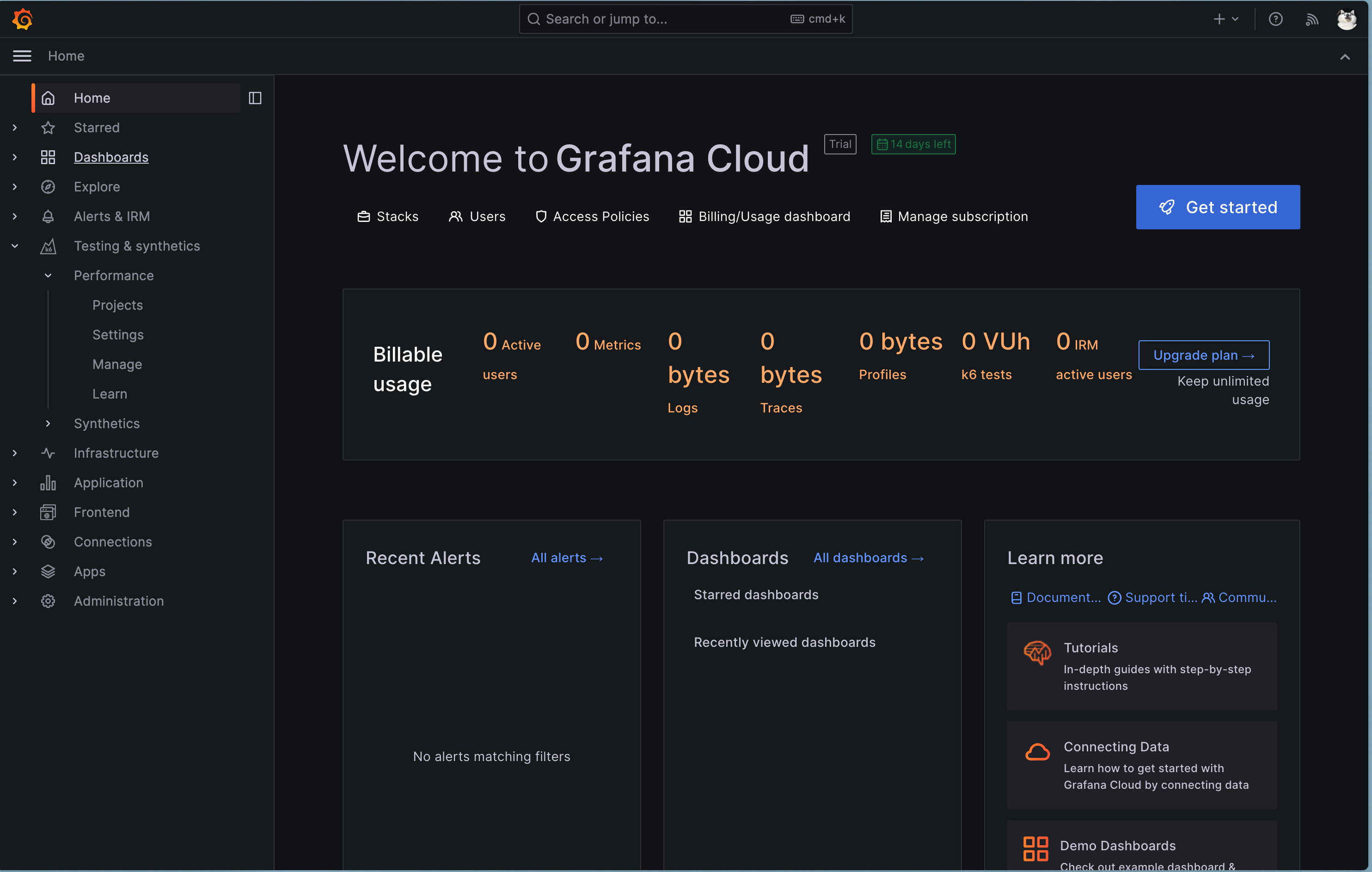
- Click on Testing & synthetics--->Performance--->Projects in the left menu
- Then select the default project or create a new project to enter the project details page
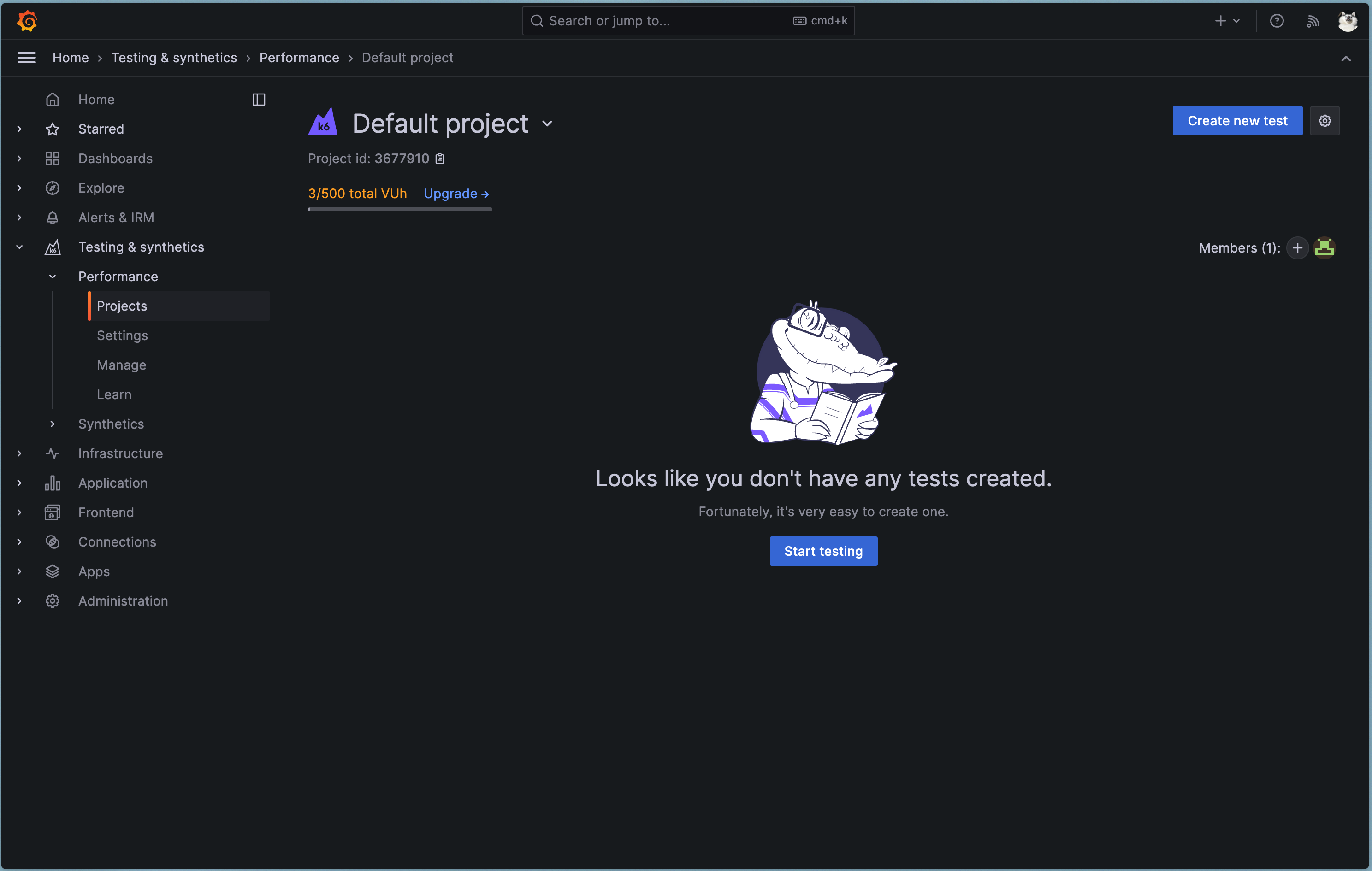
- Click the Start testing button on the page, then select Test builder at the bottom of the page to enter the Test Builder interface
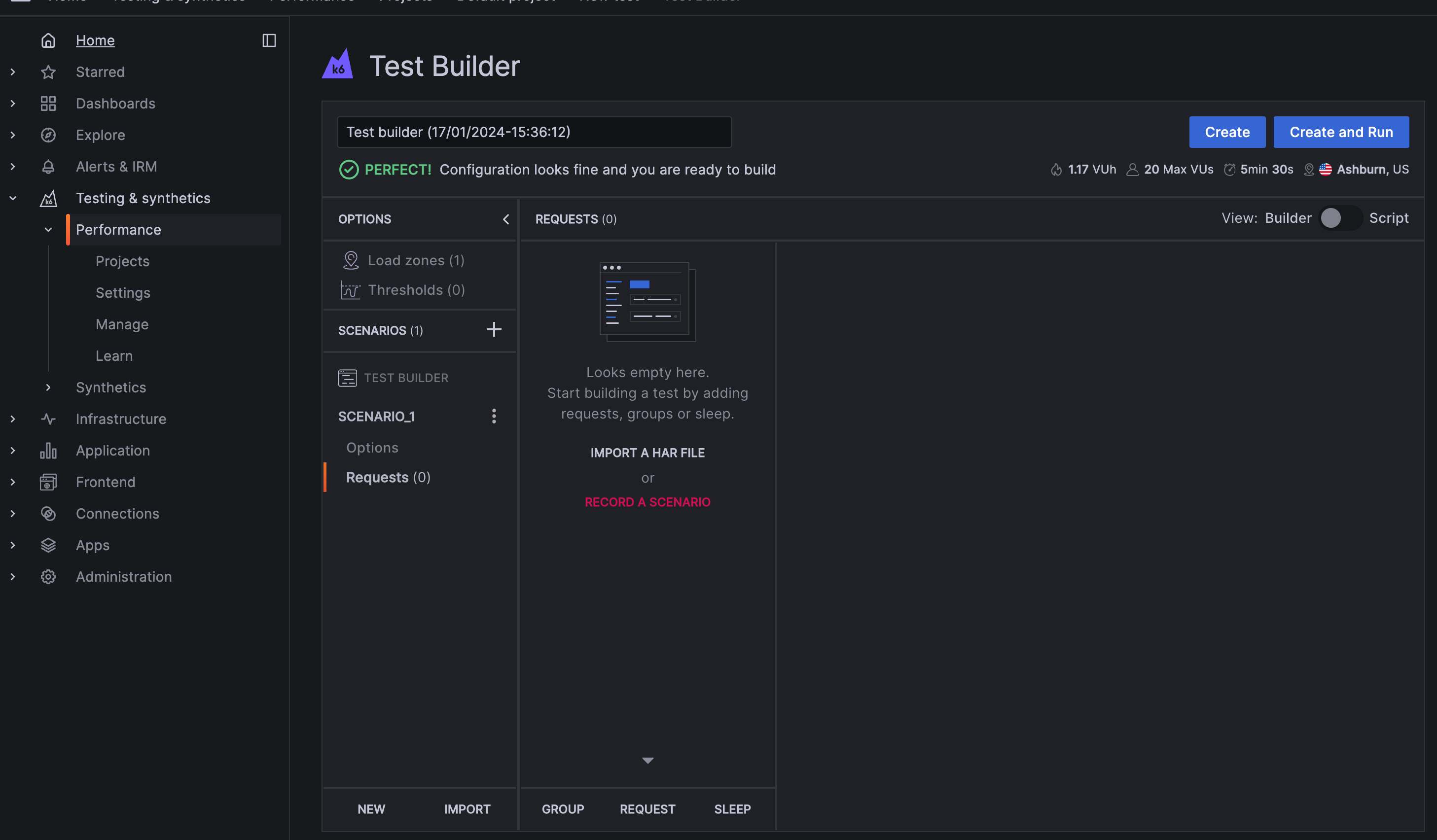
Reminder: Since Test Builder is used by logging into Grafana Cloud, Grafana Cloud may store some sensitive data, so it’s recommended not to use Test Builder in production environments.
How to Use Test Builder
-
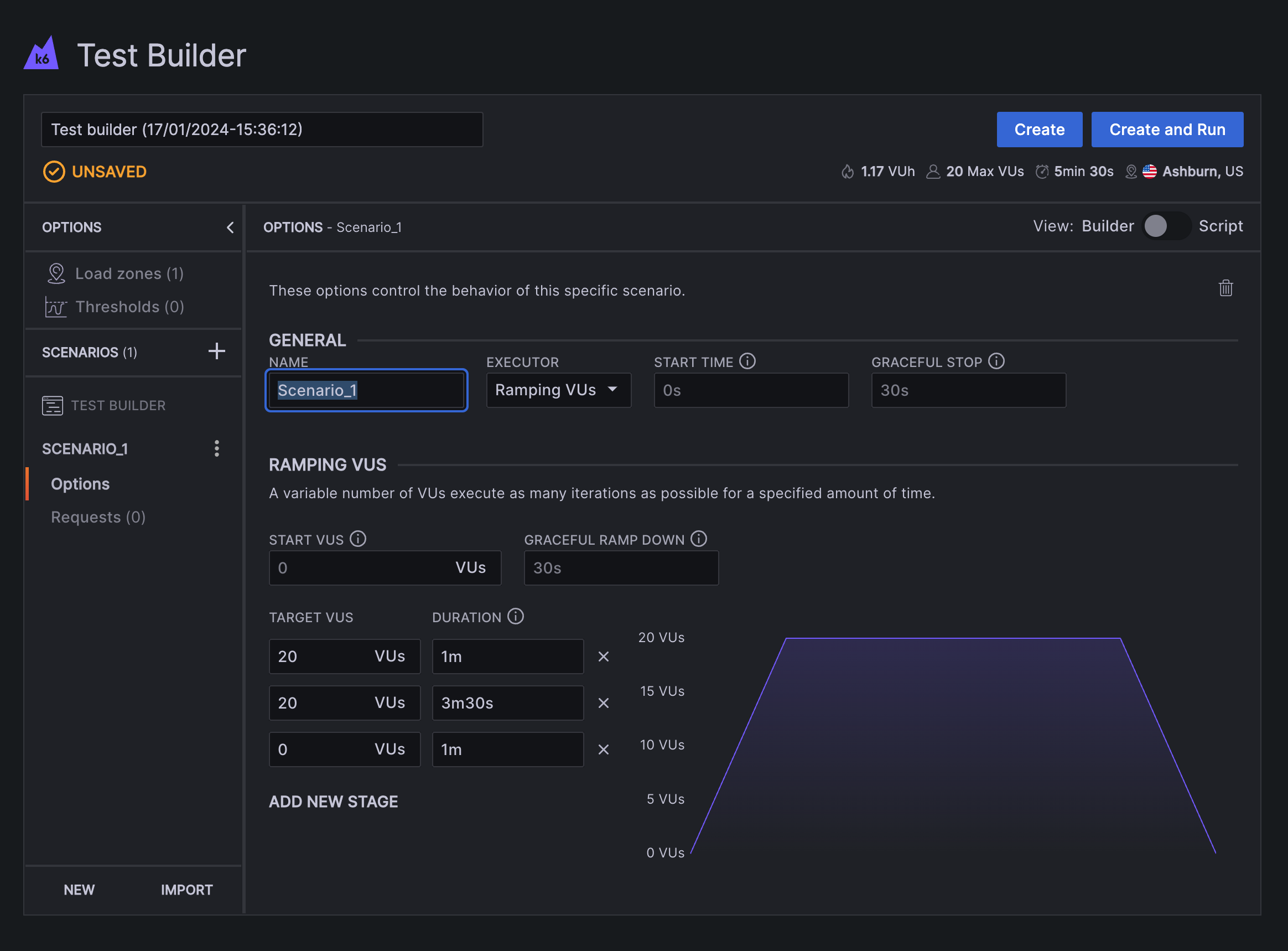
- In the Test Builder interface, click the Options button under Scenario_1 to enter the configuration page and configure basic information for the test scenario, as shown below:
- In the Test Builder interface, click the Options button under Scenario_1 to enter the configuration page and configure basic information for the test scenario, as shown below:
You can see that the scenario configuration page provides multiple configuration options, allowing you to configure scenario names, executor types, and different VU configurations according to your needs.
-
- In the Test Builder interface, click the Requests button under Scenario_1 to enter the Requests management page, as shown below:
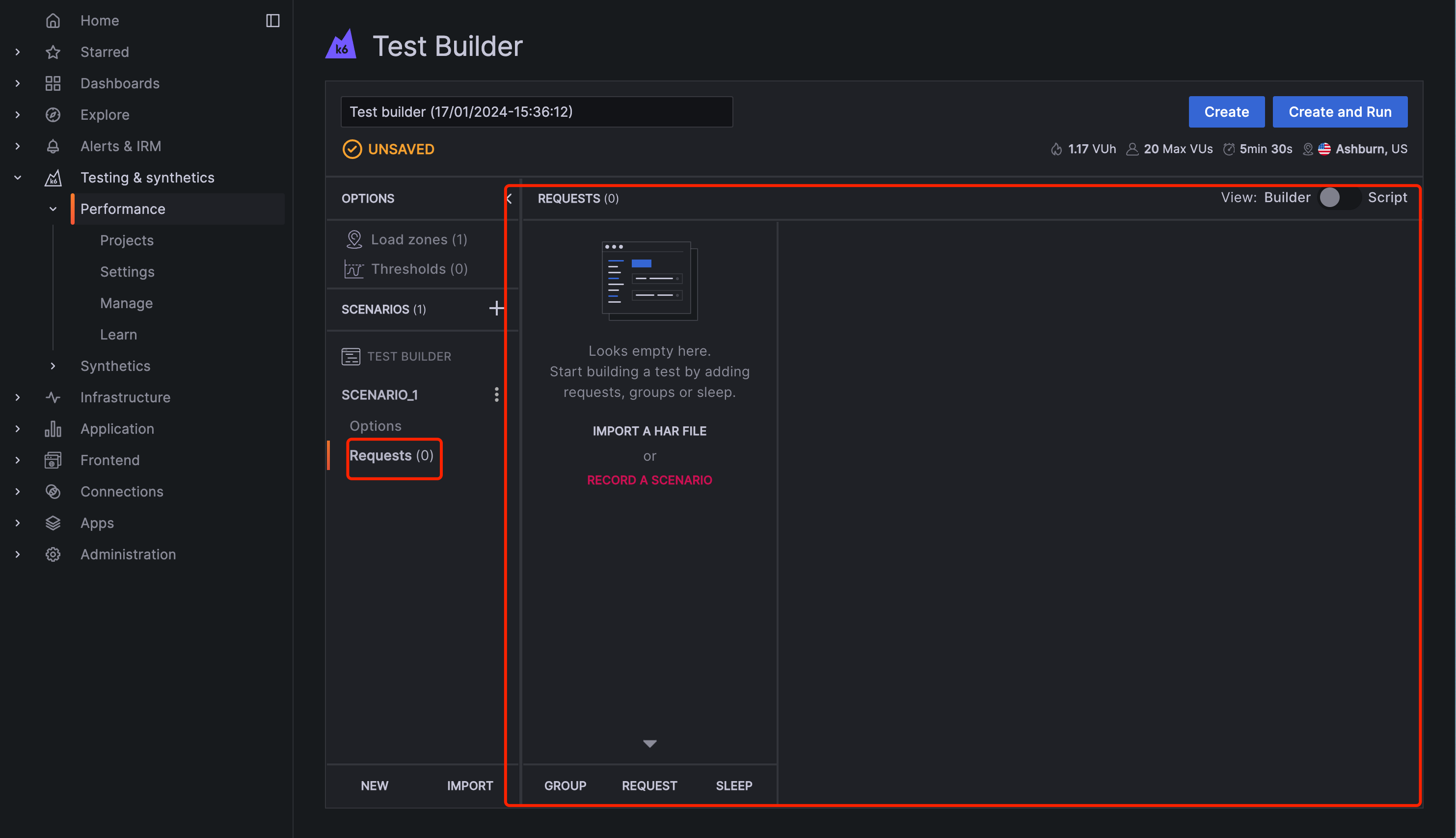
- In the Test Builder interface, click the Requests button under Scenario_1 to enter the Requests management page, as shown below:
-
- Click the Request button at the bottom of the page to enter the add request page, as shown below:
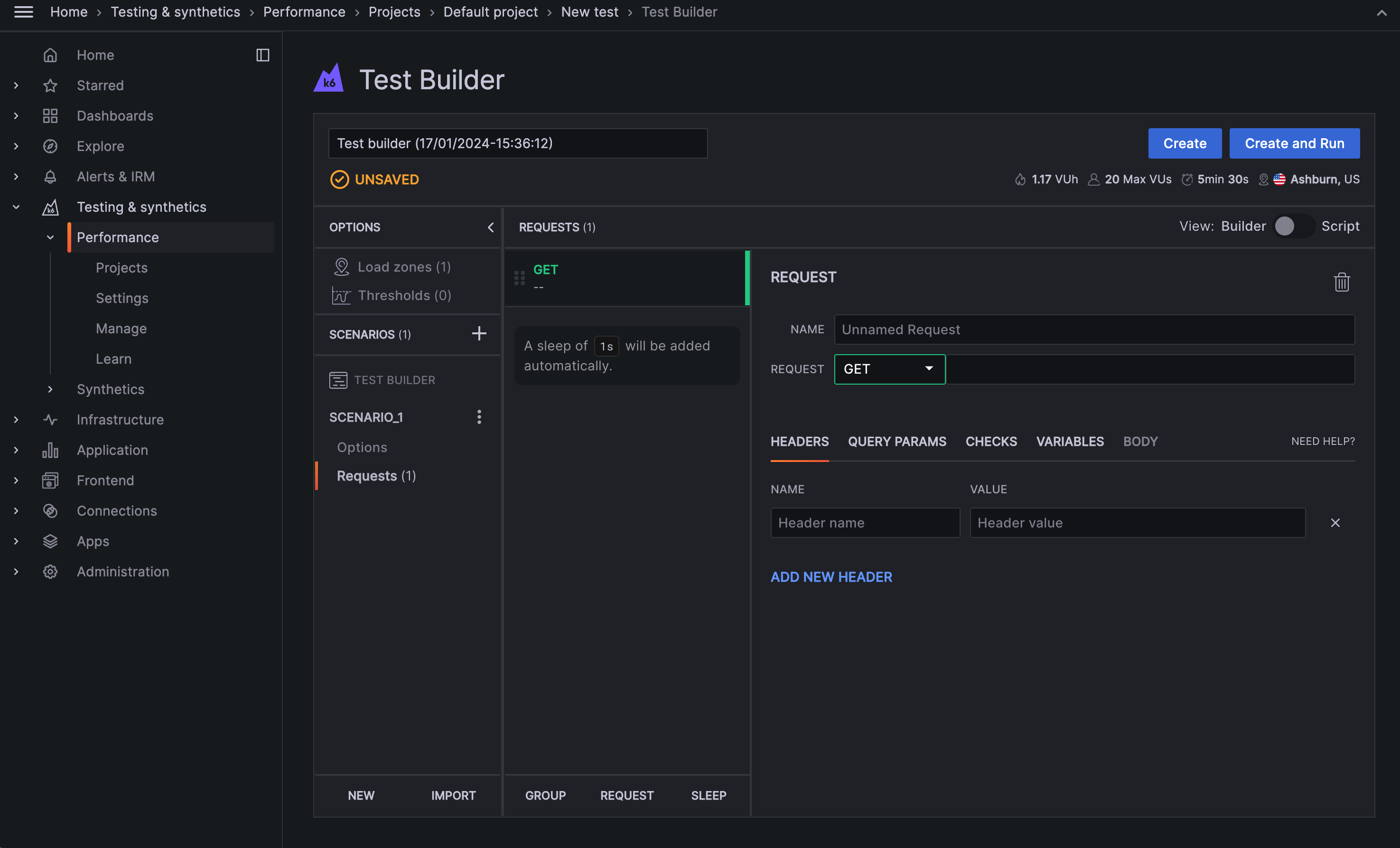
- Click the Request button at the bottom of the page to enter the add request page, as shown below:
-
- On the add request page, enter the request URL, then add request headers, request body, or checkpoints according to actual needs, then click the Create button on the page to complete the performance scenario configuration, as shown below:
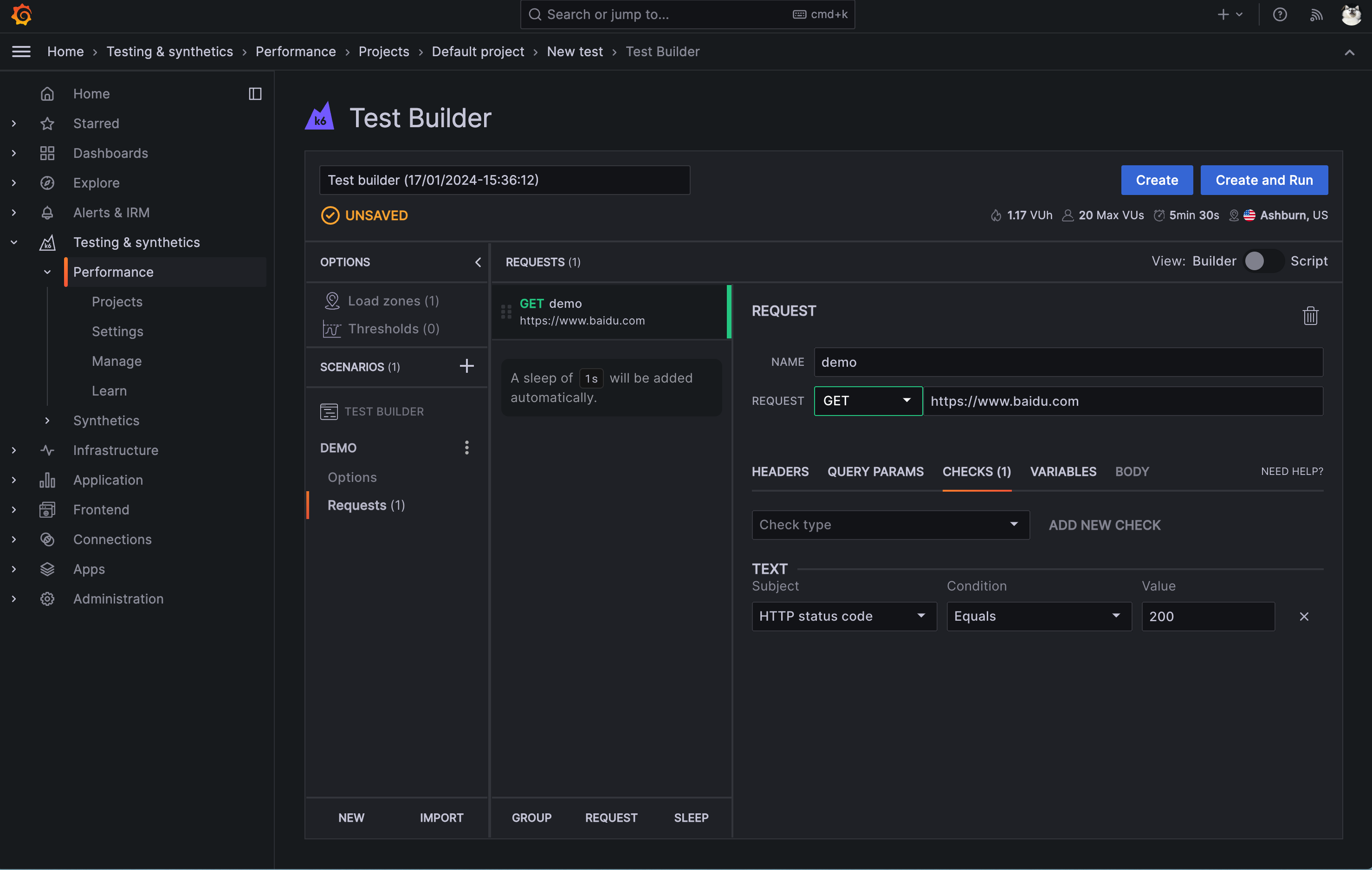
- On the add request page, enter the request URL, then add request headers, request body, or checkpoints according to actual needs, then click the Create button on the page to complete the performance scenario configuration, as shown below:
Getting Scripts Generated by Test Builder
In the Test Builder interface, click the Script button on the page, and the page will display the script generated by Test Builder, as shown below:
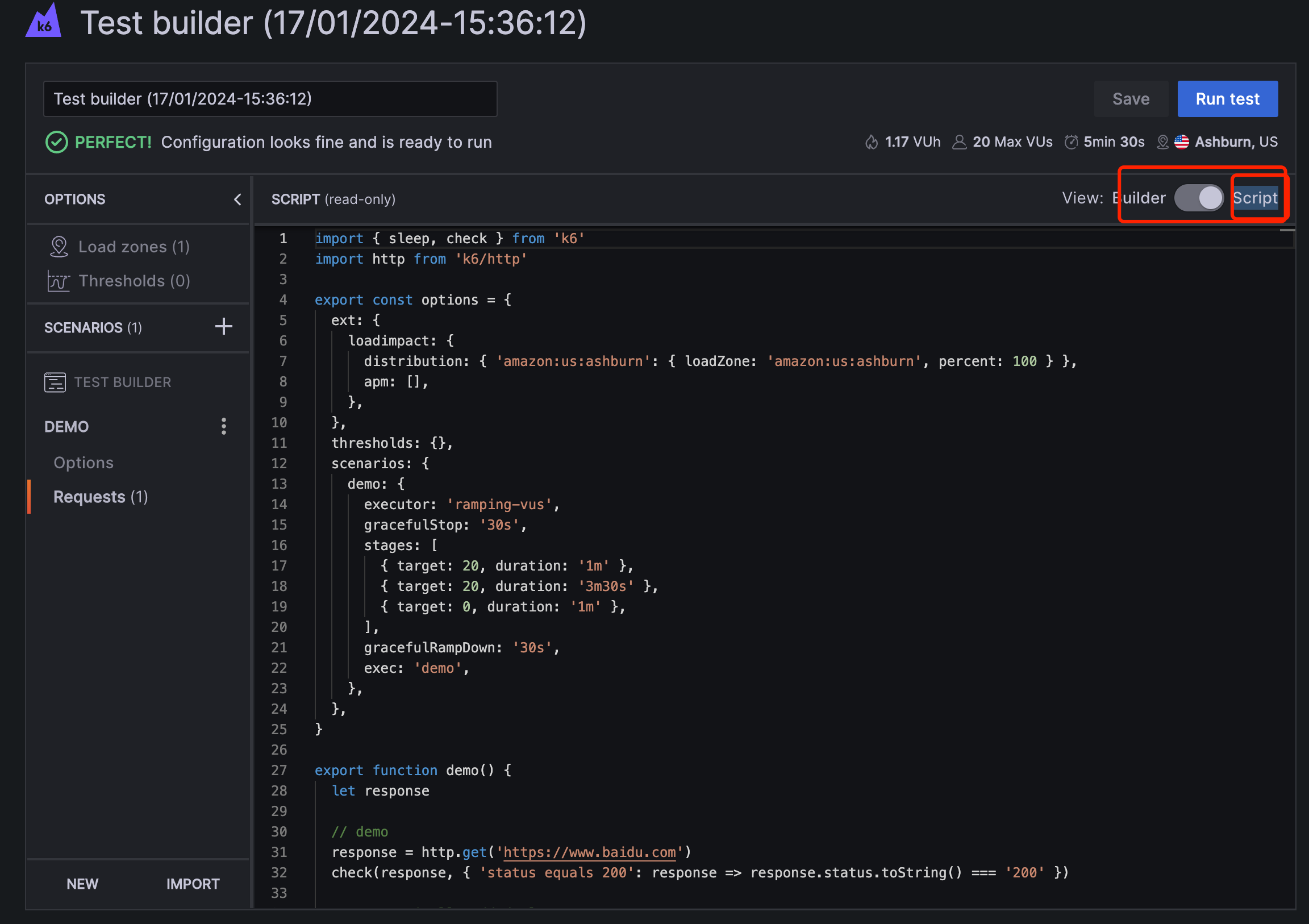
You can see that the script generated by Test Builder is a complete K6 test script that can be directly copied locally and then run using k6.
Running Scripts Generated by Test Builder
In the Test Builder interface, click the Run Test button on the page, and the page will display the running results of the script generated by Test Builder, as shown below:
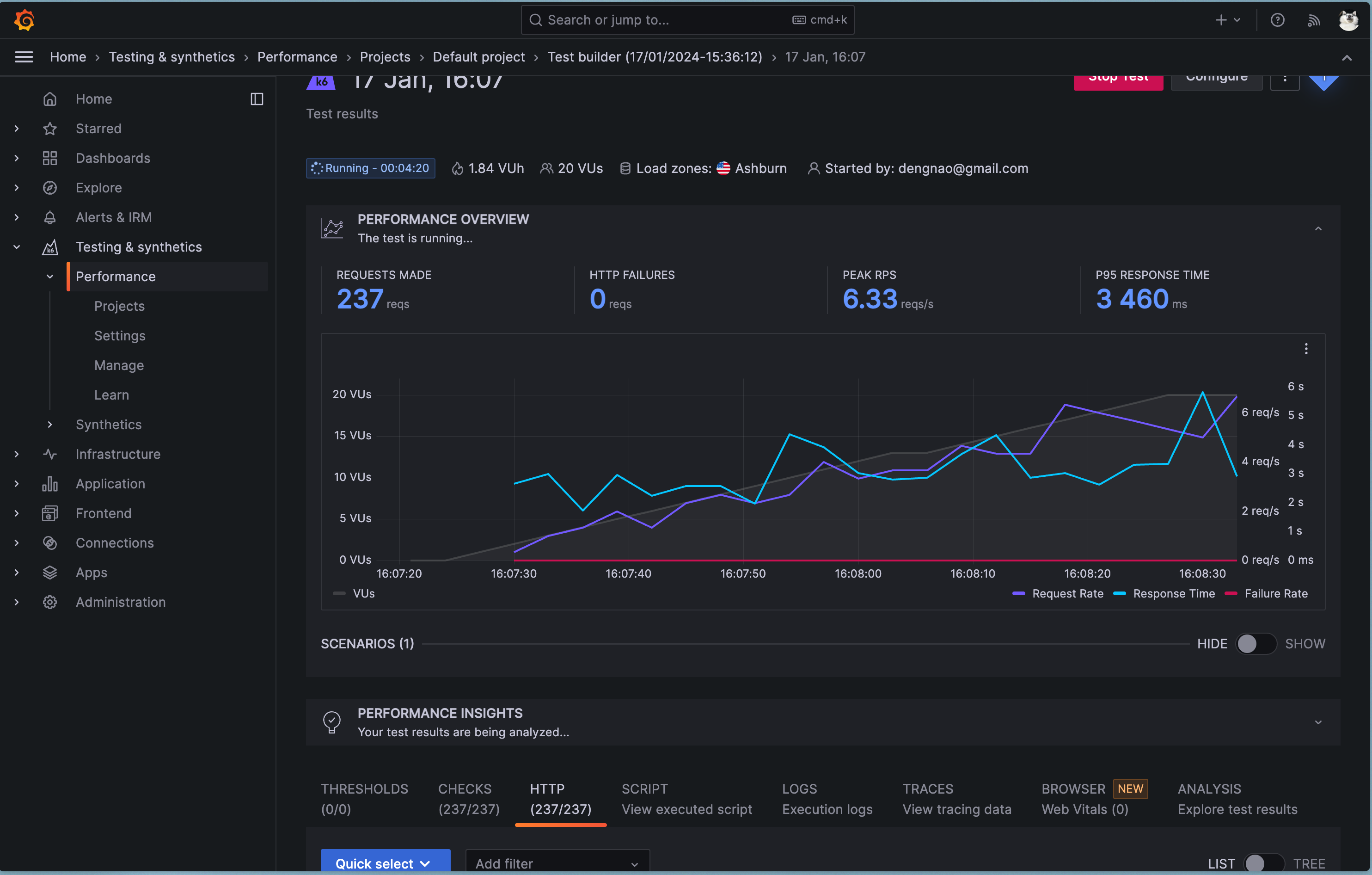
You can see very detailed test result information from the script generated by Test Builder.
Other Test Builder Features
- Also supports importing HAR files to generate test scripts
- Also supports configuration of multiple scenarios and multiple requests in one scenario
For more information about Test Builder, please refer to the official documentation: https://grafana.com/docs/grafana-cloud/k6/author-run/test-builder/
Using K6 Recorder to Record Scripts
K6 Recorder is a browser extension provided by K6 that can record user interactions with web applications in the browser and convert them into k6 test scripts.
Installing K6 Recorder
K6 Recorder is a browser extension that can be used in Chrome or Firefox. You can install it from the Chrome Web Store or Firefox Add-ons page.
-
Chrome Web Store installation address: https://chrome.google.com/webstore/detail/grafana-k6-browser-record/fbanjfonbcedhifbgikmjelkkckhhidl
-
Firefox Add-ons installation address: https://addons.mozilla.org/en-US/firefox/addon/grafana-k6-browser-recorder/
After installation, you can use K6 Recorder in your browser.
How to Use K6 Recorder
-
- Click to open the k6 Recorder extension in your browser.
-
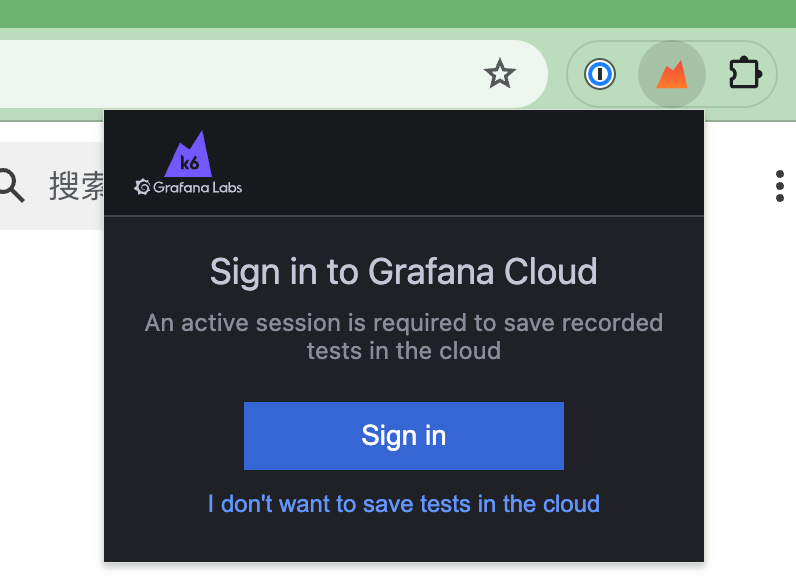
- Select where to save the automatically generated script.
- To save it on your local computer, select “I don’t want to save tests in the cloud” (I chose this option in the following example).
- To save it to any Grafana Cloud k6 project, select “Login”.
-
- After selecting the script save location, enter the test website address in the current browser tab, then click the start recording button to begin recording the current browser tab.
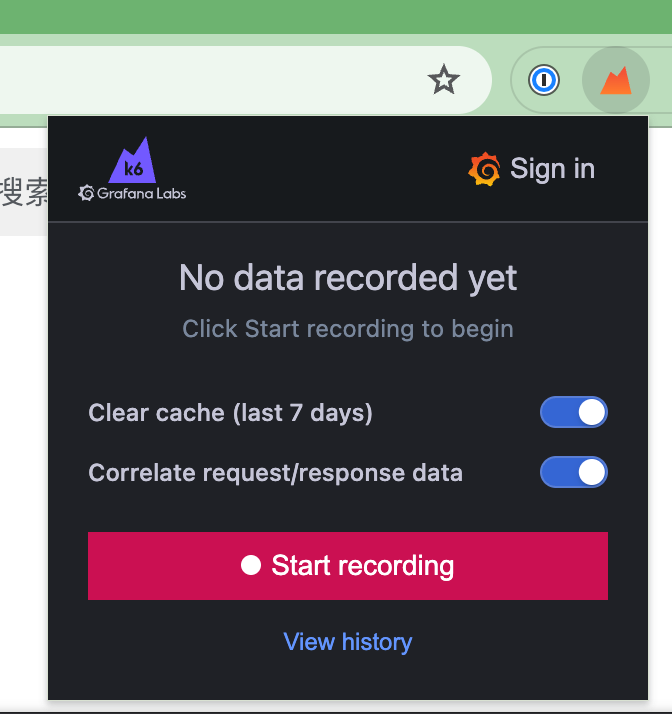
- After selecting the script save location, enter the test website address in the current browser tab, then click the start recording button to begin recording the current browser tab.
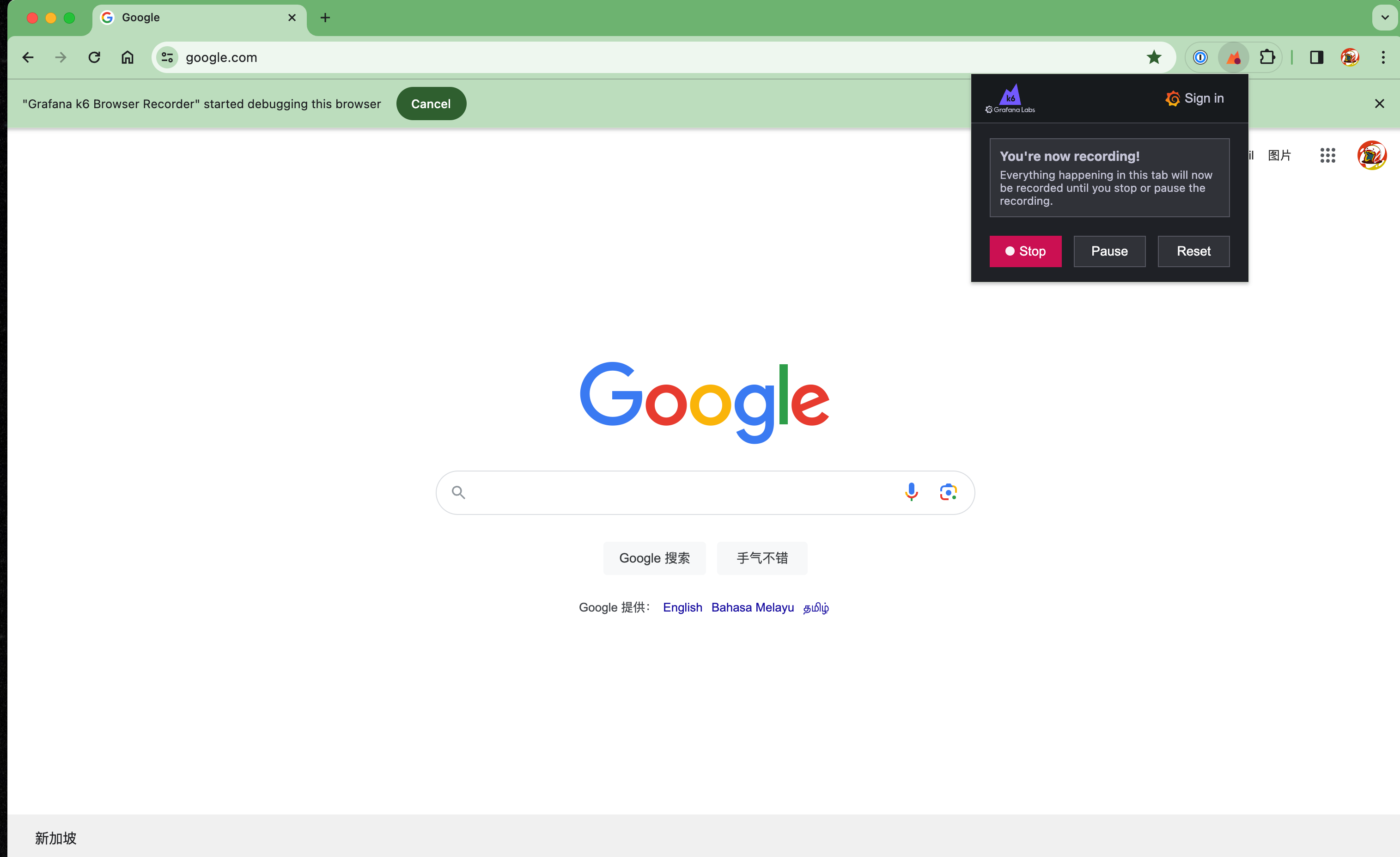
In the image, I opened Google’s homepage and clicked the search box, entered 123, then clicked the search button.
-
- Click the stop recording button in k6 Recorder to stop recording.
-
- Name and save the recorded file locally (I named it record-demo.har here).
-
- Use the har-to-k6 tool to convert the HAR file to a K6 script.
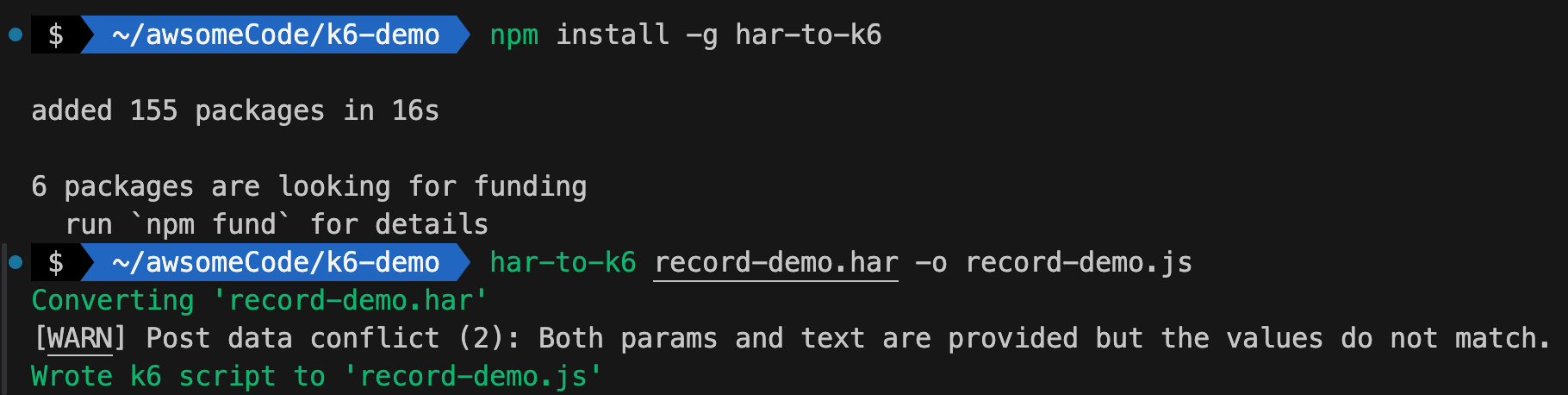
- Use the har-to-k6 tool to convert the HAR file to a K6 script.
har-to-k6 is a command-line tool that can convert HAR files to k6 scripts. You need to first install the har-to-k6 tool via
npm install -g har-to-k6, then convert the HAR file to a K6 script via thehar-to-k6 record-demo.har -O record-demo.jscommand.
-
- Partial screenshot of the converted K6 script is shown below:
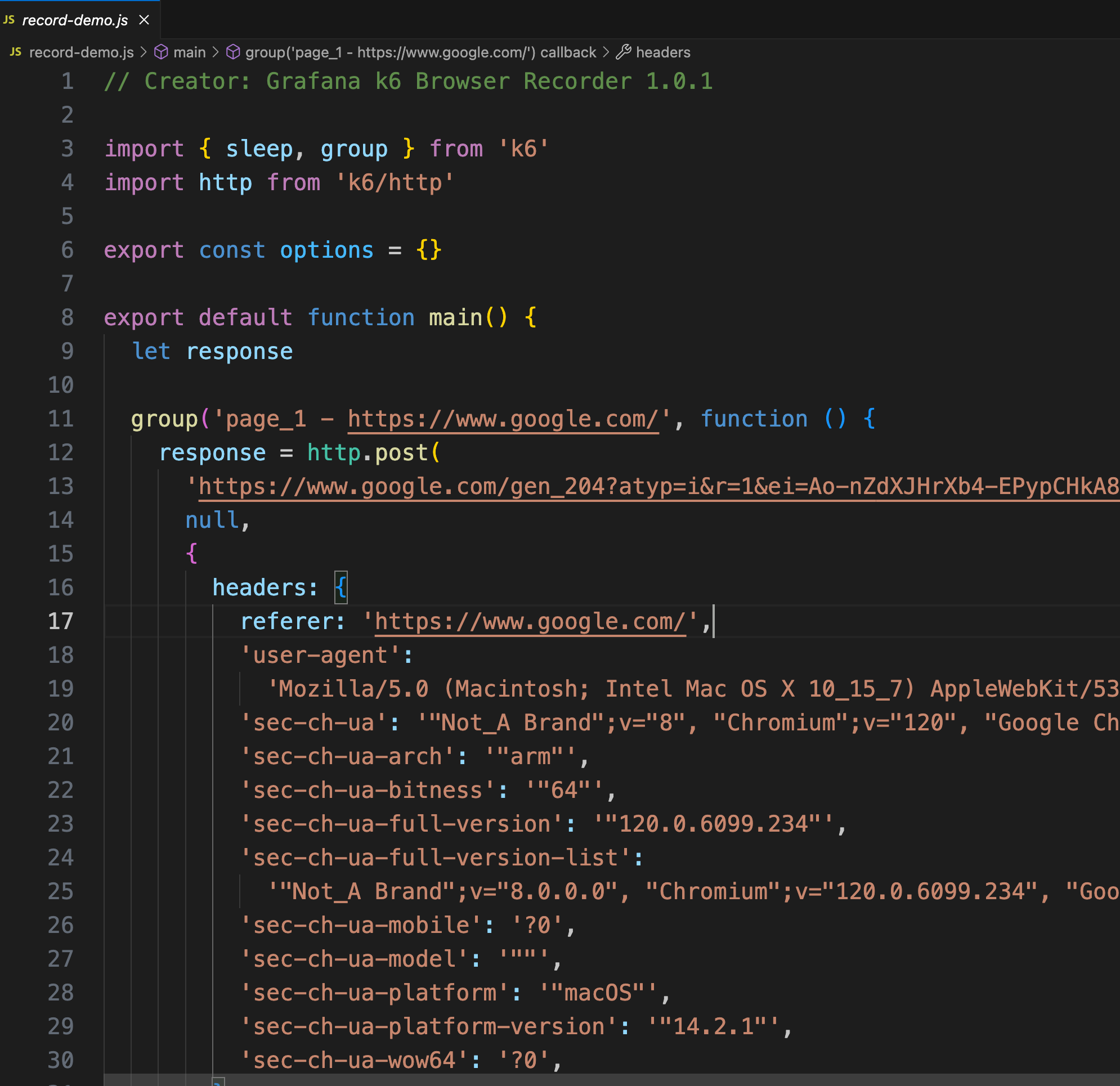
- Partial screenshot of the converted K6 script is shown below:
-
- You can modify the converted K6 script according to your needs, then run the script using k6.
-
- Use k6 to run the converted K6 script and view the running results.
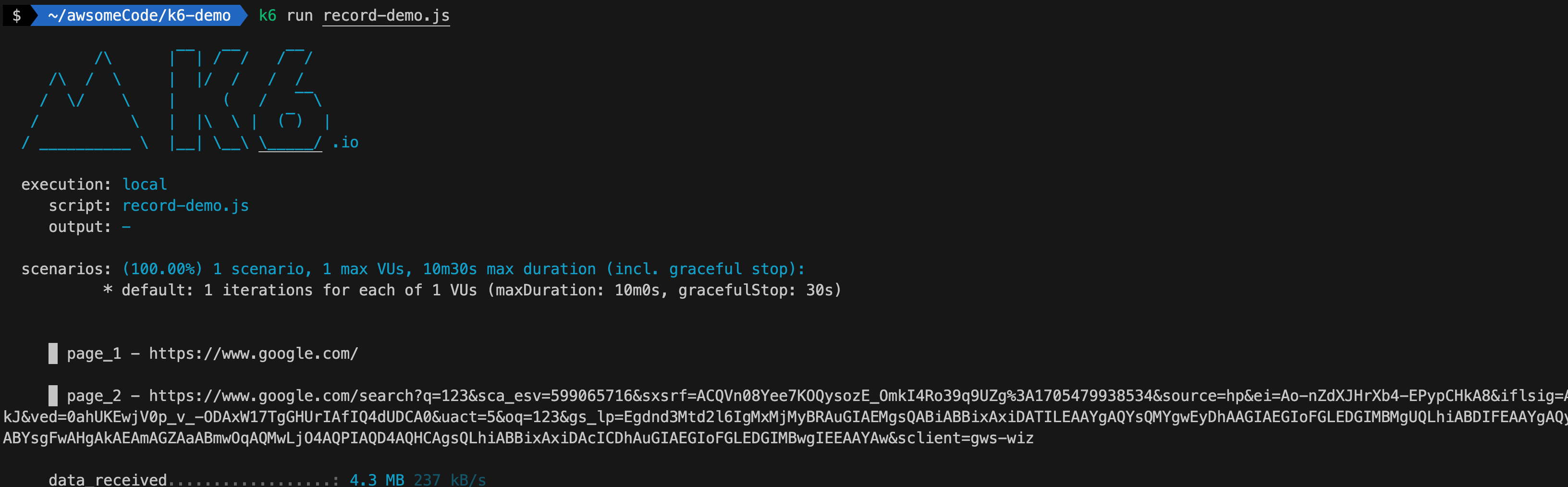
- Use k6 to run the converted K6 script and view the running results.
For more information about K6 Recorder, please refer to the official documentation: https://grafana.com/docs/k6/latest/using-k6/test-authoring/create-tests-from-recordings/using-the-browser-recorder/
Using Browser Developer Tools and har-to-k6 Tool to Generate K6 Scripts
Besides using K6 Recorder to record scripts, we can also use browser developer tools to obtain HAR files of test requests, then use the har-to-k6 tool to convert HAR files to generate K6 scripts.
Browsers and Tools That Can Obtain HAR Files
We can choose a tool to record HAR files according to actual situations. Many browsers and tools on the market can export HTTP traffic in HAR format. Commonly used ones are:
- Chrome browser
- Firefox browser
- Microsoft Edge browser
- Charles proxy tool (HTTP proxy/recorder)
- Fiddler proxy tool (HTTP proxy/recorder)
How to Use Browser Developer Tools to Obtain HAR Files
Here’s an example of using Chrome browser developer tools to obtain test request HAR files:
-
Open a new incognito window in Chrome (can exclude interference from login cookies, etc.).
-
Open Chrome Developer Tools (press F12).
-
Select the Network tab.
-
Check and confirm that the recording button (round button) is activated (red).
-
If you want to record multiple consecutive page loads, check the “Preserve log” checkbox.
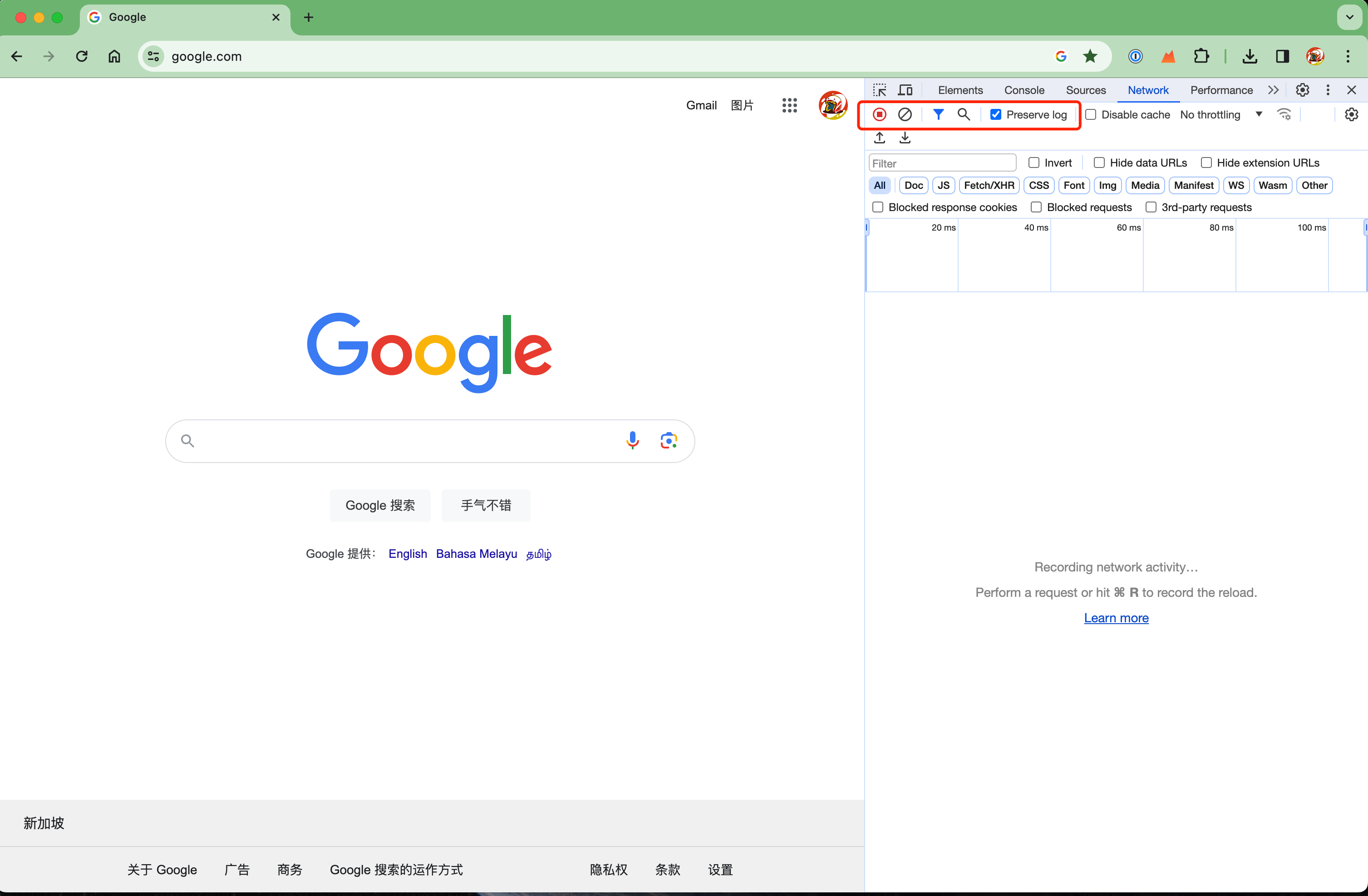
-
Enter the test website URL (such as https://www.google.com/), then start executing and subsequent operations simulating user execution (such as entering 123 to search).
-
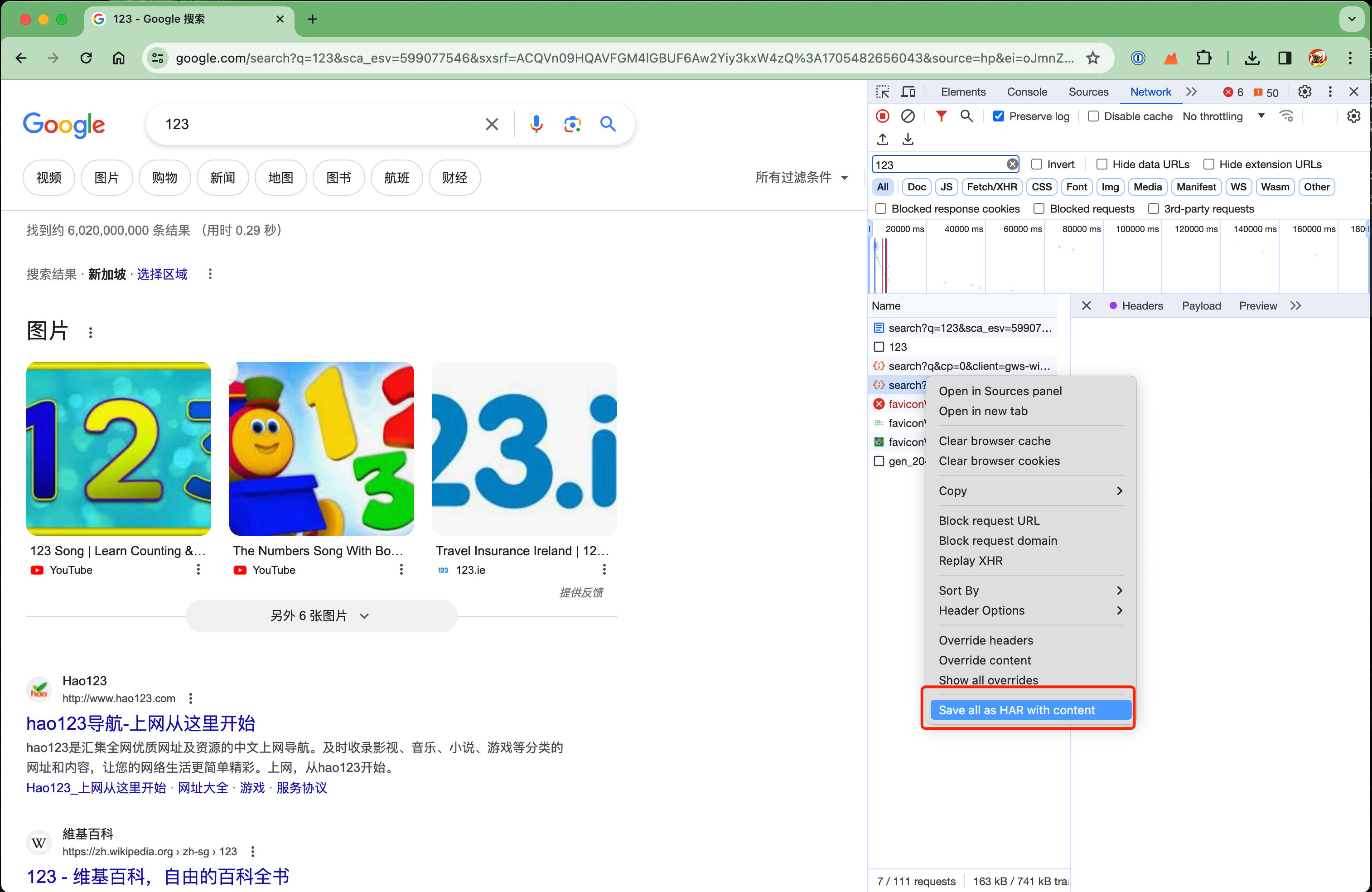
After completion, in Chrome Developer Tools, right-click the URL and select “Save content as HAR”.
-
Select the location to save the HAR file and rename it (such as har-demo), then click the save button to complete saving the HAR file.
Using har-to-k6 to Convert HAR Files
-
- Install the har-to-k6 tool
- Install the har-to-k6 tool via the
npm install -g har-to-k6command.
-
- Use the har-to-k6 tool to convert HAR files to K6 scripts
- Convert the HAR file to a K6 script via the
har-to-k6 har-demo.har -O har-demo.jscommand.
-
- Partial screenshot of the converted K6 script is shown below:
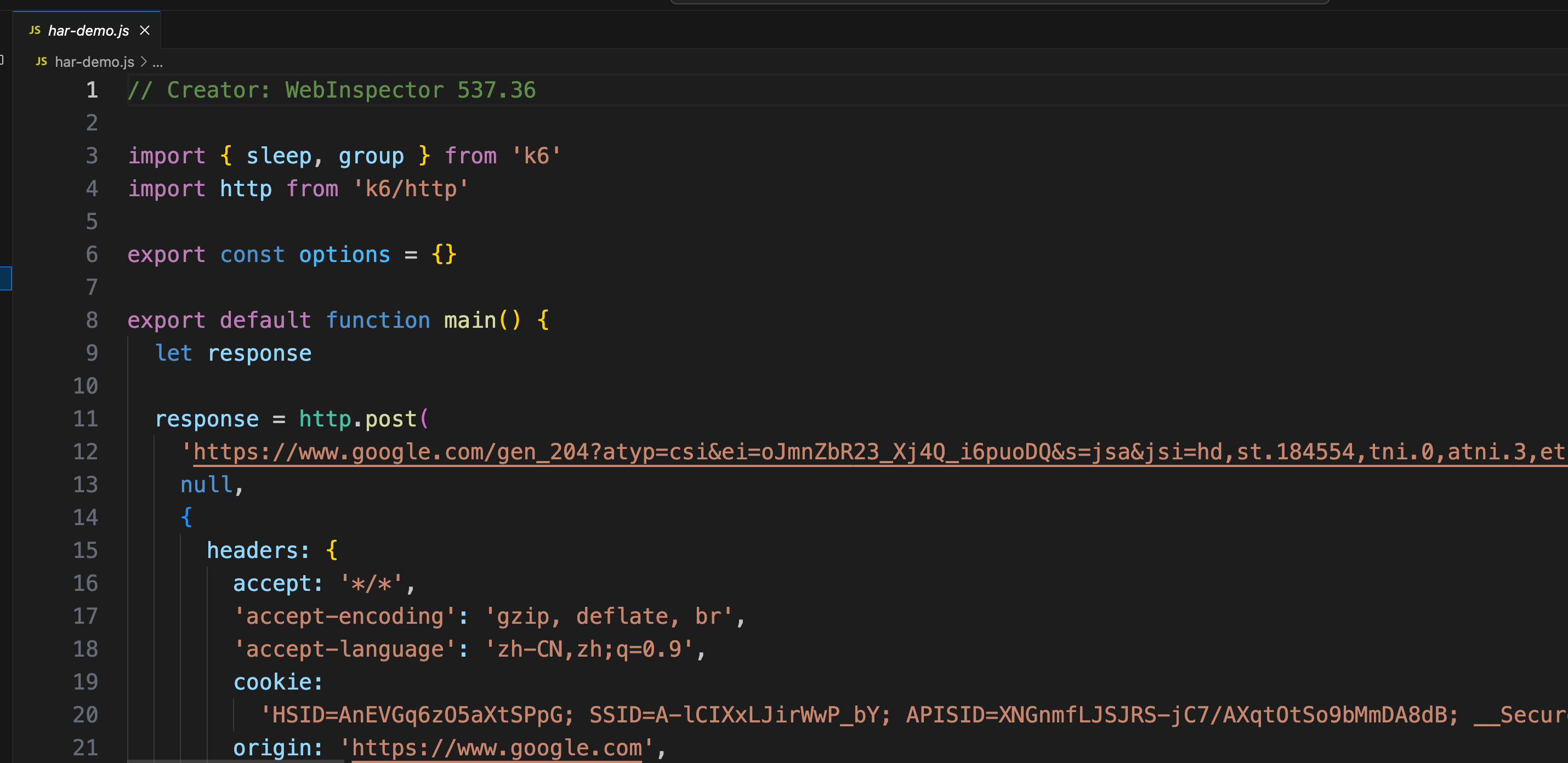
- Partial screenshot of the converted K6 script is shown below:
-
- You can modify the converted K6 script according to your needs, then run the script using k6.
-
- Use k6 to run the converted K6 script and view the running results.
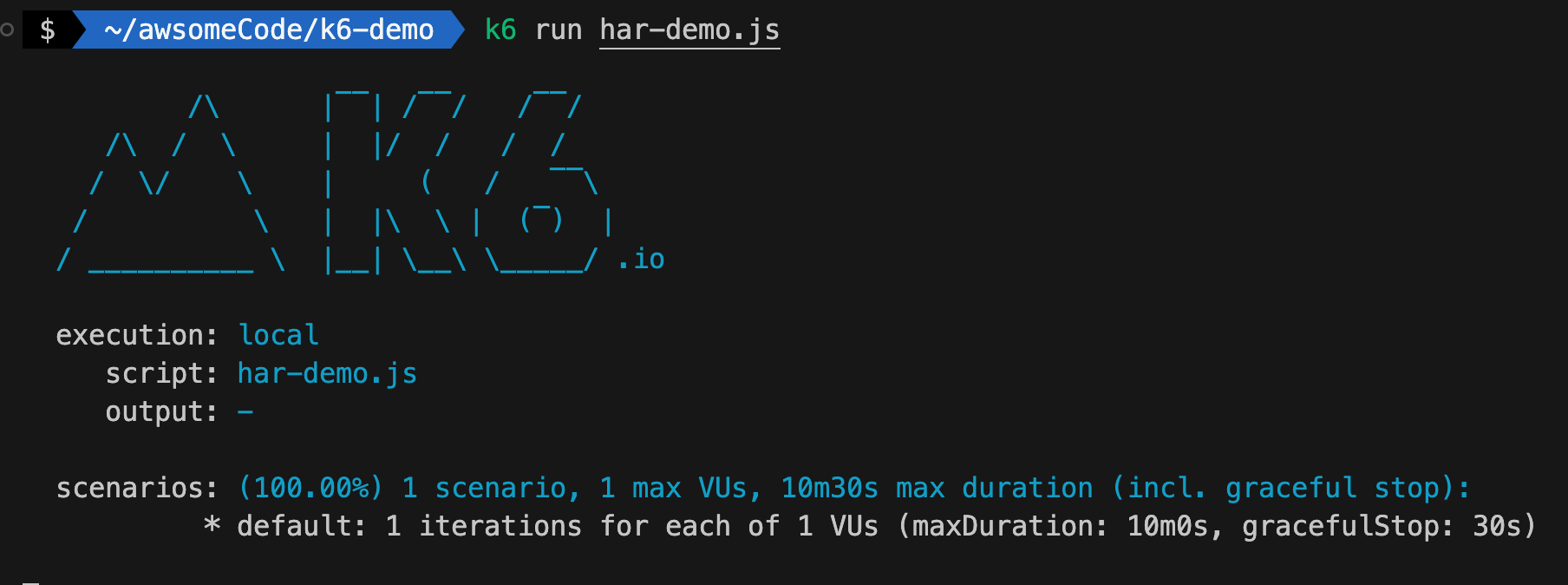
- Use k6 to run the converted K6 script and view the running results.
For more information about HAR files, please refer to the official documentation: https://grafana.com/docs/k6/latest/using-k6/test-authoring/create-tests-from-recordings/using-the-har-converter/
Reference Documentation
Welcome to follow the WeChat official account “Software Testing Classmate” for original QA technical articles pushed first.