Before getting into dsh-qa, it helps to understand the host it extends. DeepSeek Harness — usually shortened to dsh — is an open-source agent harness from DeepSeek AI built around a plugin architecture: everything is a plugin. It runs a local Web UI, gives plugins access to the host’s agent capabilities, and uses Cordis as the underlying composability layer.
The project has attracted serious attention unusually quickly. As of August 20, 2026, its GitHub repository displayed approximately 167.3k stars and 17.9k forks. That is the useful meaning of “hot” here: there is a large public audience experimenting with the project, building plugins, and finding the edges of the platform. It is not a promise that every integration is stable.
DeepSeek Harness is still in developer preview, and the official repository explicitly warns that compatibility-breaking changes will happen. That matters for dsh-qa. The workbench follows the host’s plugin and session APIs, so users should expect to update both projects together while the ecosystem is moving this quickly.
For a QA engineer, the plugin architecture has a practical implication: testing workflows can live inside the same agent environment as the conversation that drives them. That is the opening dsh-qa uses. The problem it starts with is ordinary and painfully familiar — a QA team’s daily work is scattered across too many places.
Requirements live in a doc, test cases in a spreadsheet, defects in a tracker, milestones in a calendar, and test reports in email.
AI chat is yet another silo: promising discussions get forgotten, nothing the AI produces gets reviewed, and process artifacts never accumulate.
dsh-qa (QA Workbench) is built for exactly this problem.
It is a local testing workbench plugin for DeepSeek Harness: to-dos, calendar scheduling, project overviews, a six-column kanban, and AI collaboration on one screen. Each test project binds its own native DSH session that automatically uses Test Mode (preset id: qa).
There is an important boundary here. dsh-qa is not a replacement for a test management SaaS, and it does not hide a second model gateway behind the UI. It is a local project surface around DSH: the workbench stores testing materials, while DSH owns the conversation, model catalog, credentials, skills, commands, tools, and permission policies. That split keeps the project archive close to the code and keeps model configuration where DSH users already manage it.
At a high level, the loop looks like this:
Test dashboard → project DSH session → AI tool call → material / board update → human review gateThe useful part is the middle of that loop. A conversation can produce a requirement, a test case, a defect, or a report draft, and the resulting material becomes part of the project instead of disappearing when the chat gets long.
One screen for the whole daily routine
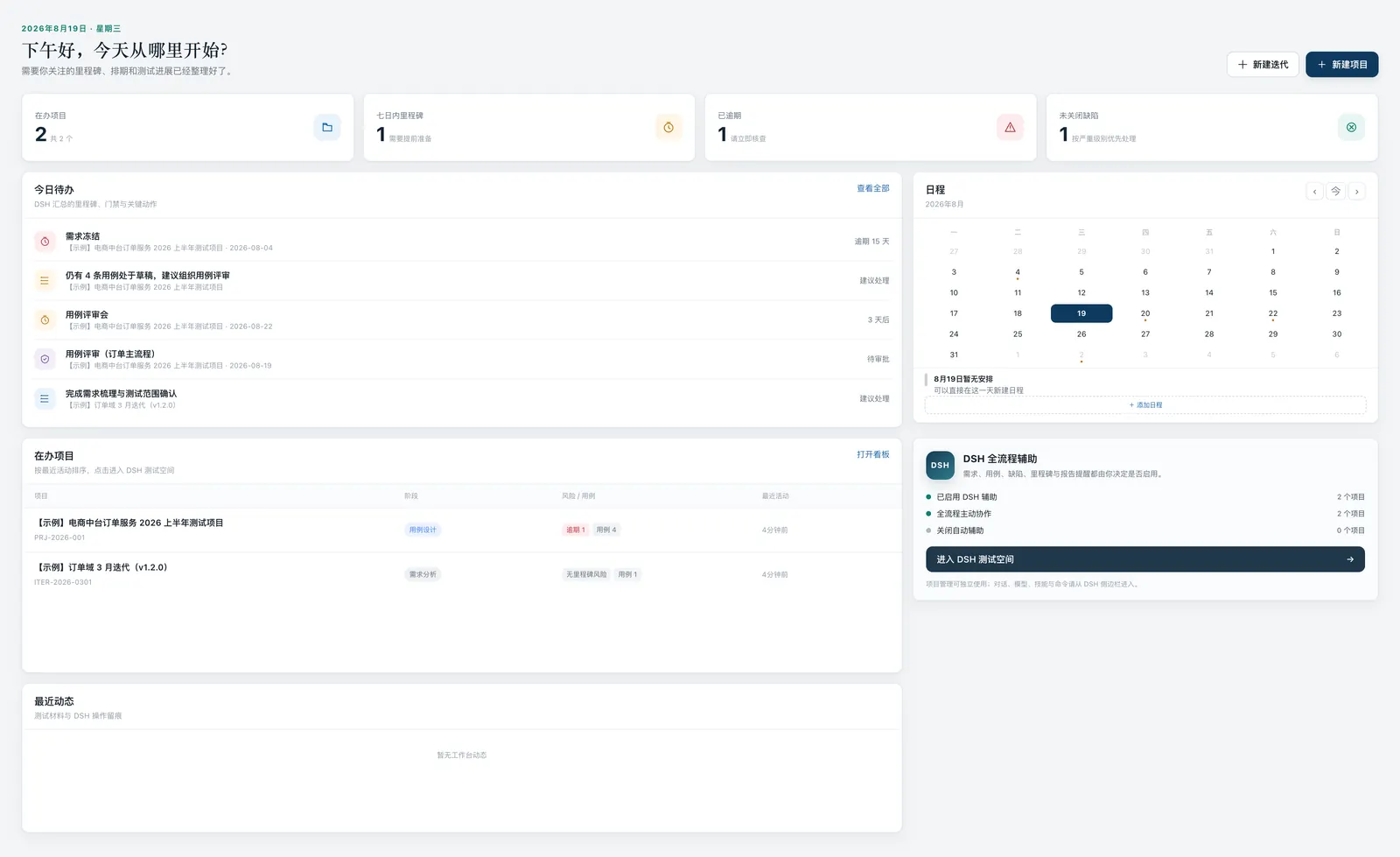
The first screen you see is the test dashboard:
- Active projects, due-soon/overdue milestones, pending gates, open defects, and recent activity, all in real time
- Calendar with year/month/day navigation; click a date to add a milestone or event
- Overdue milestones in red, due-within-7-days in yellow, pending gates in purple — live counts in the top bar
Project management comes in two shapes — project or iteration — where an iteration can hang off a parent project. Both bind their own DSH session, and the filter bar separates them.
The dashboard is operational rather than decorative. It surfaces what usually forces a tester to open five other tabs: what is active, which milestone is overdue, which gate is waiting for approval, how many defects remain open, and what changed recently. A calendar event and a milestone are separate records, so a planning reminder does not have to pretend it is a release commitment.
Six-column kanban, drag and drop
The board is a standard six-column pipeline:
Requirements → Test Design → Case Review → In Execution → Defect Regression → ReleasedCards move between columns by drag-and-drop, pushed over SSE in real time and synced across windows.
Every requirement, test case, defect, or milestone the AI registers appears on kanban cards and in the material feed instantly — no manual copying.
The board is also a useful answer to a common AI-testing problem: the chat says that something was considered, but the project has no durable record of it. In dsh-qa, a registered item has a project owner, a stage, and a place in the archive. The conversation remains the working surface; the board and material feed become the shared memory.
AI collaboration: full, on-demand, or off
dsh-qa keeps AI collaboration controllable, with three modes per project:
- Full assistance: the AI extracts and registers content from the conversation automatically
- On-demand: register only when you explicitly ask
- Off: use the workbench purely for project management
Auto-extraction and dashboard reminders can be toggled independently.
The AI registers requirements linkable to test cases with verification purposes; test cases with priority, requirement-trace trace, and risk tags; defects with business-impact-based severity plus reproduction frequency and impact scope; milestones with auto-computed due dates; and versioned test reports. Playwright / Pytest automation results can be imported directly.
Those modes matter in practice. Full assistance is useful when a project is being shaped from a large requirements document. On-demand mode is better when the team wants to discuss options before anything is written to the project. Off mode leaves a conventional local workbench with no AI extraction. The project owner can change that choice without moving the project to another system.
Gate governance: the AI requests, humans approve
Requirements review, strategy review, case review, report review, release, and closure — the AI submits the request, and the test owner approves manually.
Quality decisions stay with people; the AI keeps the process moving.
This is a workflow rule, not a slogan. A gate has a pending state, an approval decision, and a decision timestamp. A rejected request goes back into the work rather than silently advancing the board. That gives a test lead a visible place to say “the evidence is not enough yet” — which is more useful than an AI-generated green checkmark.
Every project is its own DSH session
dsh-qa does not maintain a second set of API keys or model configs:
- Each test project binds a native DSH session whose working directory is the project folder
- It automatically uses Test Mode (preset id:
qa); the model list, model switching, skills, commands, tools, and permission policies all come from DSH - Type
/in the chat for instant suggestions; the skills & commands panel supports categories, search, and click-to-insert
The browser side is intentionally small as well: the workbench frontend is vanilla JavaScript with no build step, the server uses Node’s native HTTP and SSE support, and the DSH integration is mounted through a same-origin route. That keeps the plugin runtime close to the host instead of creating another application platform inside DSH.
Installation & quick start
# Install as a DSH plugin (recommended)
dsh plugin --profile web add github:naodeng/dsh-qa
Restart dsh web after installing, and a QA Workbench entry appears in the GUI sidebar.
Before first use, install the Test Mode preset:
scripts/install-qa-preset.shWant to try it without installing? Run it standalone:
git clone https://github.com/naodeng/dsh-qa.git
cd dsh-qa
npm start        # → http://127.0.0.1:8899
On first launch it creates two sample workspaces (one project + one iteration) with requirements, test cases, defects, milestones, reports, and a pending approval gate — explore them right away.
The sample data is worth opening before connecting a real project. It shows the intended relationship between a project and an iteration, how a pending gate appears in the dashboard, and how the same records surface on the board, calendar, and project detail view.
Ecosystem
- awesome-qa-skills: 92 Chinese + English testing skills, installable into the DSH skills directory with one command
- awesome-qa-prompt: multi-role QA workflows
- The UI supports one-click zh/en switching, four QA themes, adjustable workspace layouts, and DSH Remote pairing for mobile access
The companion repositories have different jobs. awesome-qa-skills provides installable task-oriented skills; awesome-qa-prompt provides reusable role and workflow prompts; dsh-qa provides the project state, material records, board, gates, and local archive that those capabilities can update. Keeping those layers separate makes it possible to change a skill without rewriting the workbench.
All data stays local
Plugin mode stores data in ~/.dsh/dsh-qa/; standalone mode keeps it in the project’s data/ folder.
Zero npm dependencies, no build step, and both the workbench and DSH listen only on 127.0.0.1.
Your test projects’ business data and chat history stay on your own machine.
That local boundary still needs to be understood correctly: when a model provider is used through DSH, the model interaction follows the provider and DSH configuration chosen by the user. dsh-qa does not upload a second copy of the project to its own service, but “local workbench” does not mean “the model sees nothing.” Credentials and provider choices remain explicit in DSH settings.
Who is it for
- QA engineers who want one entry point for their testing work
- Test leads who need to unify processes and output standards across projects
- Teams introducing AI into testing without being led around by a black box
- Developers using DeepSeek Harness who want to extend its capabilities
If you already run DeepSeek Harness, installing dsh-qa takes one command.
Repository: https://github.com/naodeng/dsh-qa
The shortest evaluation path is: install the plugin, install the qa preset, open the seeded project, and ask the project session to register one requirement. Then inspect the resulting board card, material entry, and gate state. That small loop tells you more about the workbench than another feature list.
For the record-by-record walkthrough, continue with From Requirements to Release: Running a Full Test Project with dsh-qa.
Project status and how to help
dsh-qa is still at an early stage. The core loop works, but the project is being shaped through real use — expect rough edges, missing conveniences, and a few decisions that will change as more teams try it.
If you have a testing workflow that the workbench handles badly, please try it and tell us what happened. Open an Issue with the steps, expected behavior, and screenshots or logs when they help. Pull requests are welcome too — documentation, bug fixes, test coverage, accessibility improvements, and small workflow refinements are all useful contributions. Please read the repository’s contribution and license notes before sending code.